Customer scoring assigns points for customer activities and profile details. Your team can use the resulting score alongside the customer’s history when deciding whom to follow up with. The score is separate from the customer’s star rating, although a star rating can contribute points to the score.
Open scoring settings
- Open Admin Tools, then Settings.
- Select Customer Scoring.
- Turn on Scoring enabled to use the scoring rules.
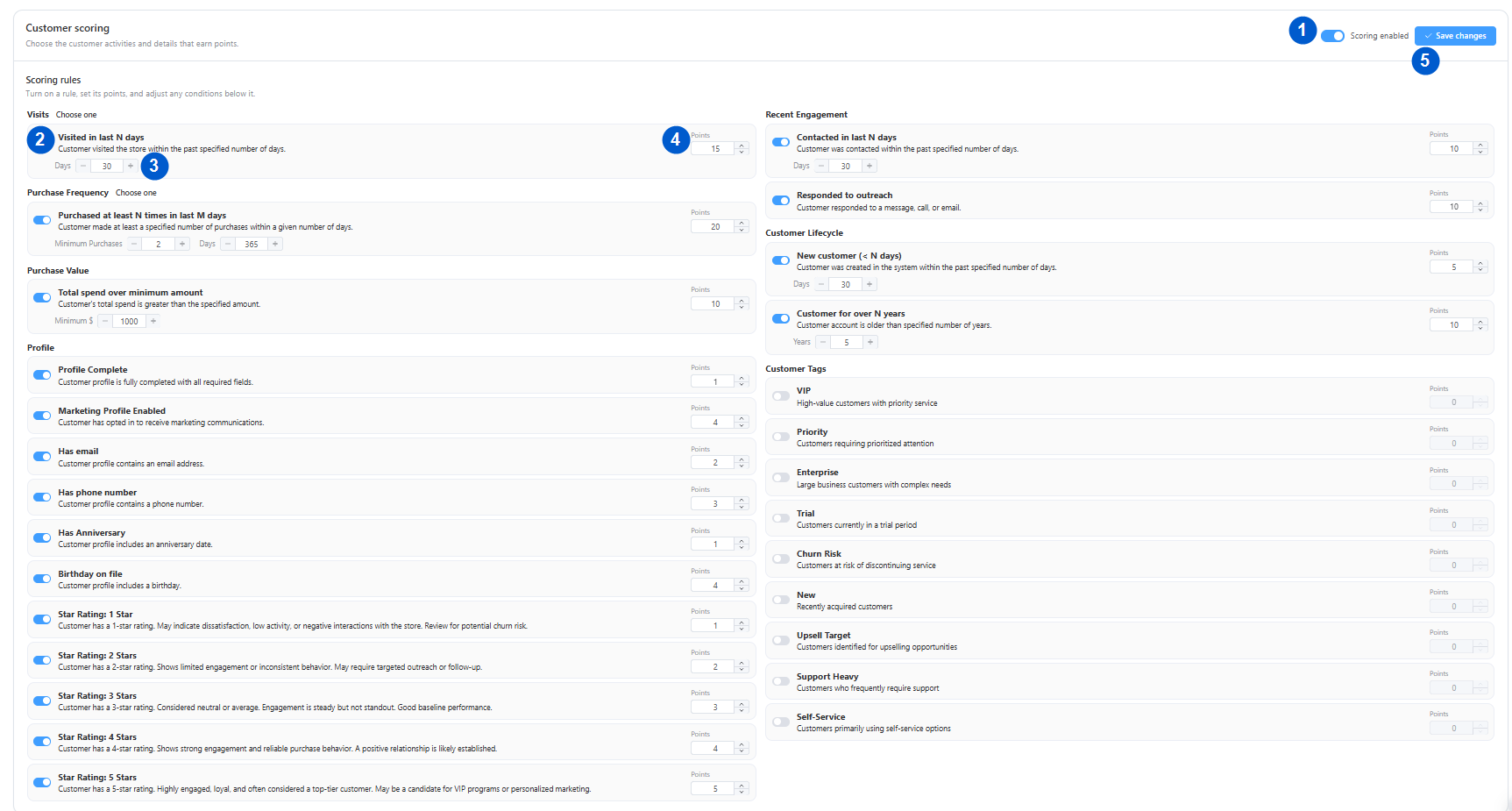
Customer Scoring settings. The account header has been removed.
- Turn scoring on or off.
- Enable an individual rule.
- Set a condition, such as the number of days.
- Assign points to the rule.
- Save your changes.
Choose rules and points
Turn on the rules your store wants to use. Enter the points for each enabled rule and adjust any conditions shown, such as a number of days, minimum purchases, spending amount, or years as a customer. Rules with zero points are not saved as active scoring rules.
The settings group rules by visits, purchase frequency, purchase value, profile, recent engagement, customer lifecycle, and customer tags. For example, you can award points for a recent visit, a completed profile, or a customer tag. Where a group says Choose one, enable only one rule in that group.
Select Save changes when you are finished. Scores are calculated by a scheduled process, so changes may not appear immediately.
Star ratings and scores
The Profile section includes a rule for each star rating. If a rule for a customer’s rating is enabled, that rating can add its configured points to the customer’s score. To change the colors used to display star ratings or highlight customer names, use Settings > Customers instead.
Plan your scoring
Choose point values that reflect your store’s priorities. For example, a store that values recent visits might assign more points to a visit than to a completed profile field. Review the rules with your team and adjust them as your priorities change. A score is a guide to help prioritize work; review the customer’s context before acting.