Lookups are reusable options used throughout IntentTracker, including intention statuses, customer tags, task categories, and priorities. Consistent names help your team select and report on the same values.
Find a lookup list
Open Admin Tools > Lookup Lists. Store Administrator access is required. Select a category on the left to view its values. The example below shows Intention Statuses; your store's lists and values may differ.
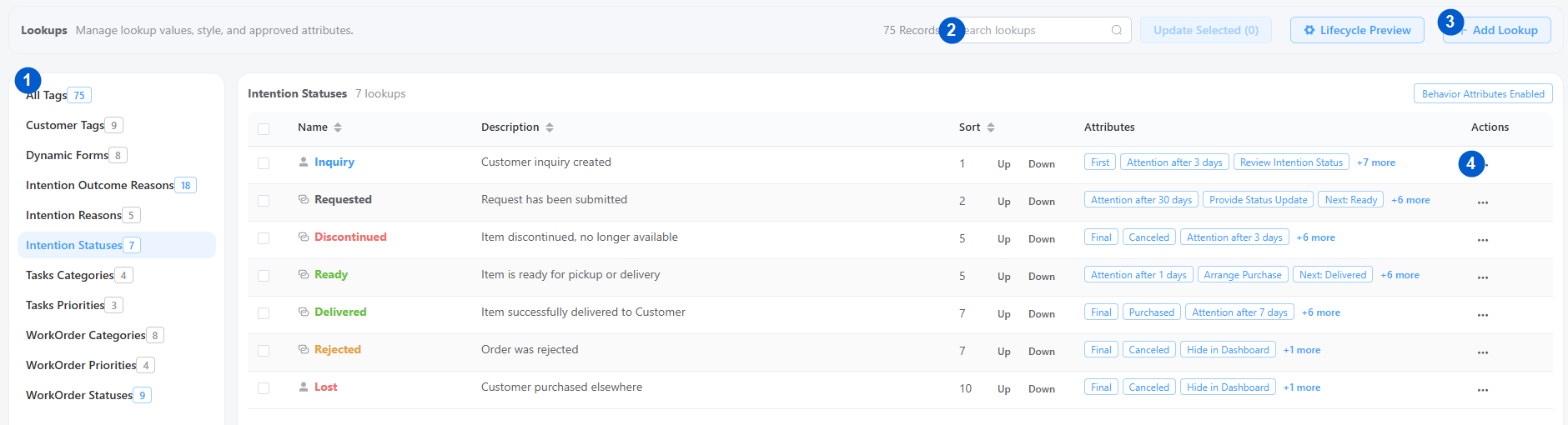
The Lookup Lists page, with Intention Statuses selected.
- Choose a lookup category.
- Search lookups.
- Select Add Lookup to create a value.
- Use the row's actions menu to manage an existing value.
Add or edit a lookup
Select a category and choose Add Lookup, or use the actions menu on an existing row. In Details, enter a clear name and, when useful, a description. Check the tag and set the sort order, then select Save after reviewing the other applicable tabs.
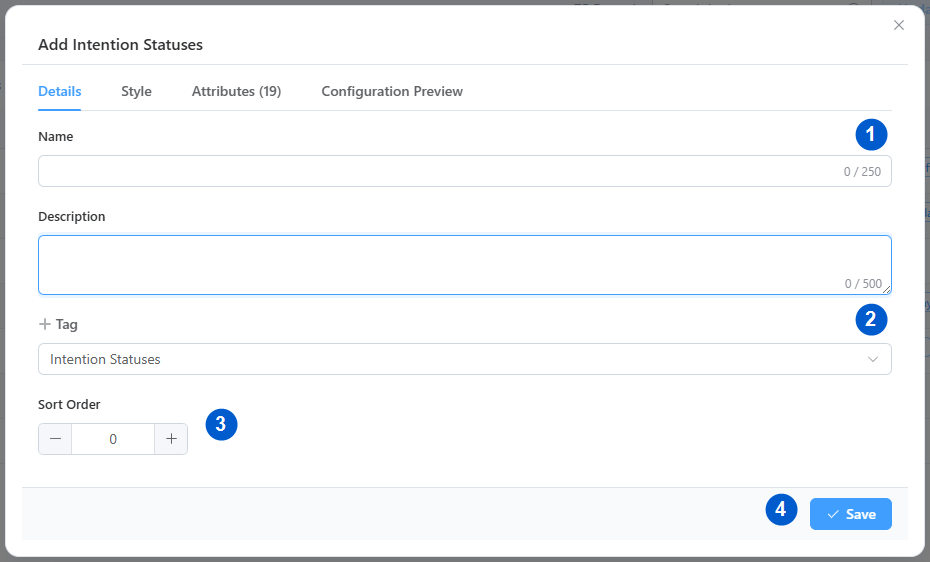
The Details tab for an Intention Status lookup.
- Enter the name and description.
- Check the lookup tag.
- Set the sort order.
- Save the lookup.
Choose a style
Use Style to preview how a value will appear. You can choose bold or italic text, display it as a badge, and select a color. The preview shows the effect of your choices.
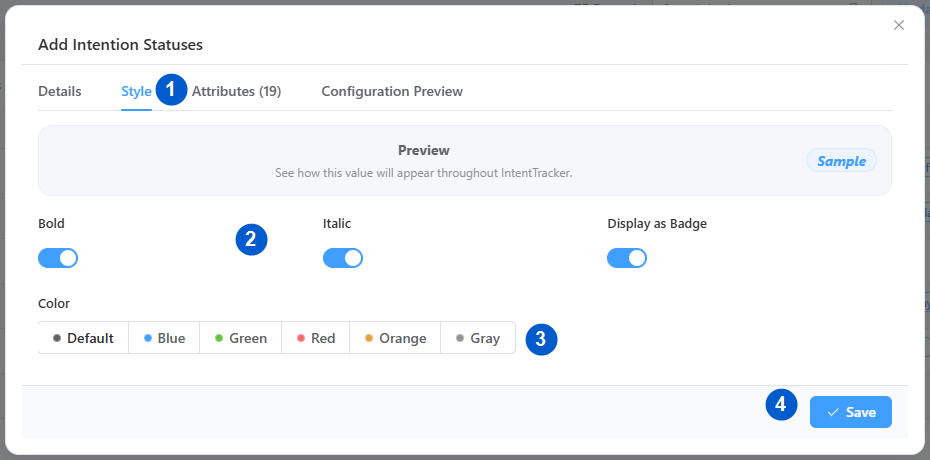
The Style tab controls how the lookup value appears.
- Open Style.
- Choose text and badge formatting.
- Select a color and check the preview.
- Select Save.
Review behavior
Some lookup types offer Attributes and Configuration Preview. Attributes can affect how a value behaves, not just how it looks. Review them carefully before changing a status used by your team, reports, or automation. See the Configure Intention Statuses guide for details on intention status behavior.
Before removing or changing an existing value, consider where your team already uses it and whether the change affects reporting or workflows. Use clear, distinct names and review lists periodically.