Customer page settings help your team recognize customers who may need attention. Configure name highlighting based on time since the last interaction and choose the colors used for customer star ratings. Your store decides what each rating means; star ratings are separate from the rules-based Customer Score.
Before you begin
Agree on follow-up timing and a consistent meaning for each rating with your team. Access to customer editing and settings depends on your permissions.
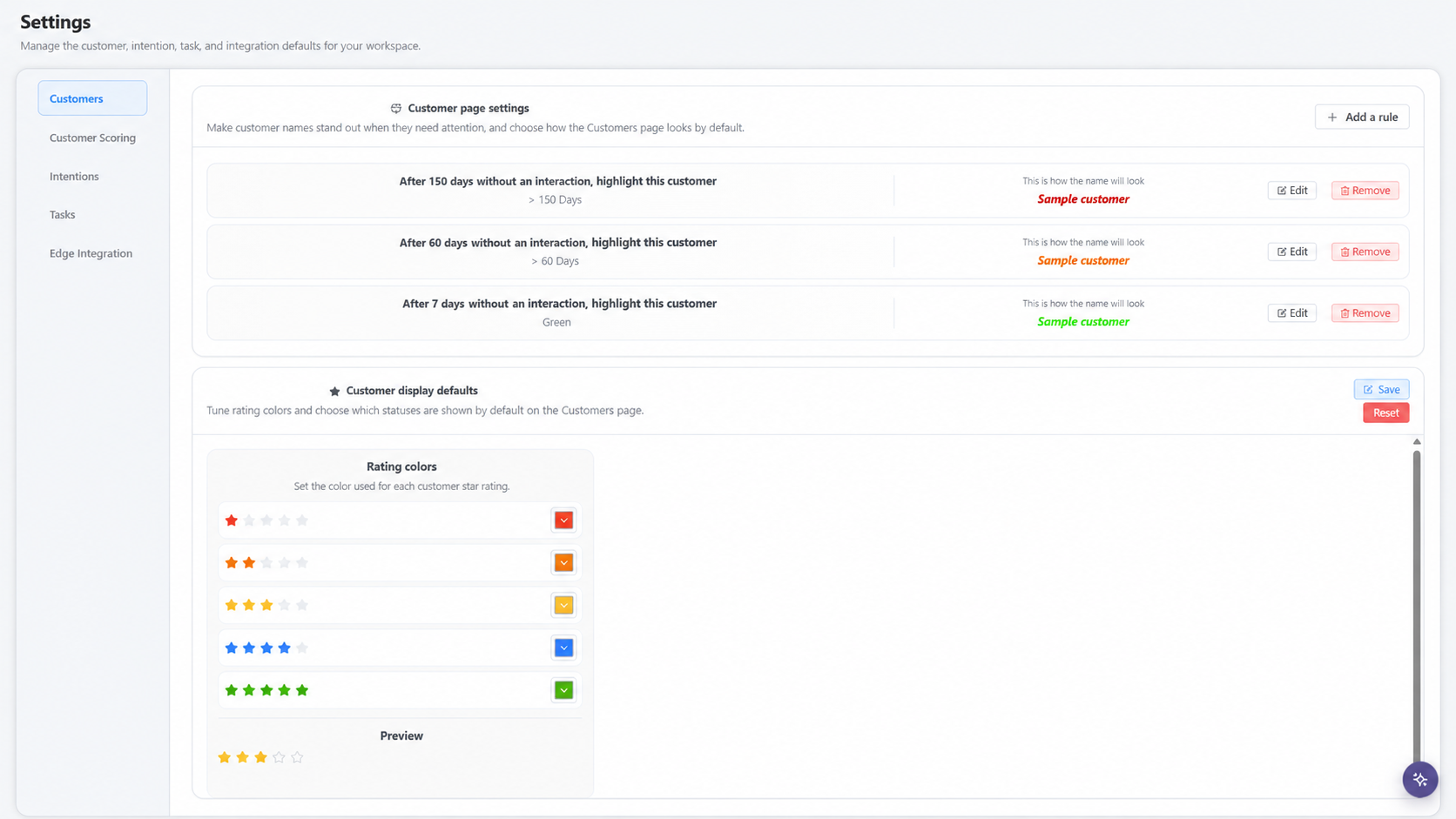
Customer page settings: example name-highlighting rules and rating color controls. Your store's settings may differ.
Highlight customer names
- Open Settings and select Customers.
- In Customer page settings, select Add a rule.
- Enter a descriptive Rule name for your team.
- Set the number of days without an interaction, select a Name color, and choose whether the name should be bold or italic.
- Select Save and review the sample name in the rule list.
Use Edit or Remove beside a rule to change or remove it. These rules control how customer names are displayed; they do not contact the customer or change the customer's star rating. Check the Customers page with appropriate records to confirm the result is useful to your team.
View and update a rating
- Open Customers and find the customer.
- Look for the Rating column. If it is not displayed, use the columns chooser to show it.
- Open the customer record and edit Rating, then save the customer changes. You can also use the grid's inline editing when it is available to you.
- Confirm that the intended number of stars appears on the customer record or in the grid.
Use the Rating column filter when you want to narrow the loaded customer list by rating. A customer without a rating is different from a customer who has been assigned a rating.
Configure rating colors
Store Administrators can choose the colors used for each rating:
- Open Settings and select Customers.
- In Customer display defaults, find Rating colors.
- Use the color picker beside each star level to choose a color. Use Preview to see the result.
- Select Save in the Customer display defaults section.
Reset restores the default star rating colors after confirmation. The colors affect presentation; changing a color does not change the rating stored on each customer. The customer highlighting rules above this section are separate and use time since an interaction.
Use ratings consistently
Review the meaning your store assigns to each rating with the team. Use the rating together with customer context and recorded interactions, and update it when your store's assessment changes. For rule-based scoring, see the Customer Scoring guide in the Help Center.