Audience: Store Administrators. Estimated setup time: 10–15 minutes per rule.
Make Every Customer Moment Count
Automation Rules help your store respond consistently to meaningful customer events.
WHEN an event occurs → Apply optional filters → THEN perform one or more actions.
Only matching, enabled rules perform their configured actions.
Open the Visual Automation Builder
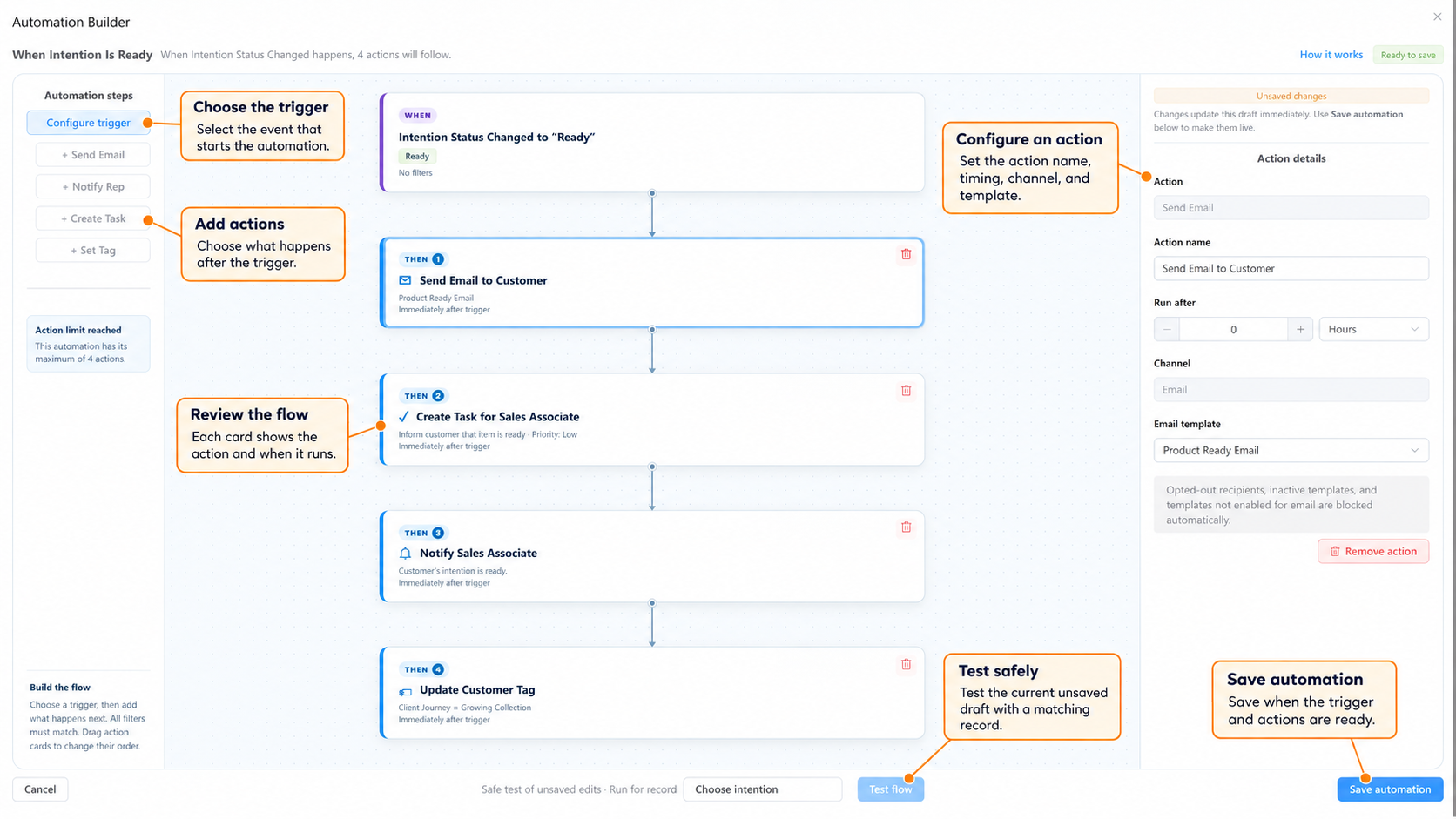
The builder has three working areas: the Automation steps panel for choosing a trigger and adding actions, the workflow canvas for reviewing the sequence, and the Action details panel for configuring the selected action.
Use Test flow to check the current unsaved draft, then select Save automation when it is ready.
Choose an Event
Events define when a rule can be evaluated. The current builder provides these events:
| Event | When it is triggered | Example business use |
|---|---|---|
| Customer Created | When a new customer record is created. | Create a welcome follow-up task. |
| Customer Birthday | Once per customer each calendar year, based on the birthday. | Send a personalized birthday email. |
| Customer Anniversary | Once per customer each calendar year, based on the account anniversary. | Notify the assigned associate. |
| Customer Store Visit | When a visit is recorded; actions wait 15 minutes by default and are skipped if the visit is removed or changed first. | Send a visit follow-up email. |
| Purchase Anniversary | Once each year for an owned product, based on its purchase date. | Recognize a customer's purchase anniversary. |
| Customer Follow-Up Due | Checked daily for customers in the chosen days-since-last-interaction range. | Create a task for customers not contacted in 60–90 days. |
| Intention Status Changed | When an intention reaches the selected status. | Send a product-ready email when an intention becomes Ready. |
| WorkOrder Status Changed | When a work order reaches the selected status. | Send an update tied to a service milestone. |
| Product Price Changed | When a product price changes; at most once per product per day. | Create a task to review affected customer intentions. |
| Product Discontinued | When a product is marked discontinued; at most once per product per day. | Create a task to contact affected customers. |
Customer Follow-Up Due requires at least one days-since-last-interaction boundary, such as at least 60 days or a range of 60–90 days. A new interaction resets the customer's follow-up clock.
Add Optional Filters
Filters narrow the records that qualify. Available options depend on the selected event and can include customer score, rating, tags, and additional fields; birthday or anniversary values; intention status and additional fields; work-order status and additional fields; and product additional fields. All configured filters must match.
Add Actions
The builder offers Send Email, Notify Rep, Create Task, and Set Tag. Add up to four available actions. Select a card on the canvas to set its name, timing, and action-specific details. Action availability depends on the selected event.
Example: Follow Up When a Customer Is Due
- Select Customer Follow-Up Due.
- Set a follow-up window, such as 60–90 days since the last interaction.
- Add Create Task and assign the task to the appropriate associate or team.
- Optionally add Notify Rep so the owner sees the follow-up.
- Use Test flow with an appropriate customer record, then save and enable the rule.
Example: Intention Ready Notification
- Select Intention Status Changed and choose Ready.
- Add Send Email with the approved customer-facing template.
- Optionally add an available follow-up action for the selected event.
- Review recipients, communication preferences, timing, and other enabled rules that could send similar messages.
- Test with a suitable record, save, and verify the enabled state.
Test Your Flow
Test flow safely simulates the current draft, including unsaved edits. Choose the matching customer, product, or intention record, then select Test flow. The result reports either No match or the number of actions that would run.
Testing does not save the automation, queue a job, send email, notify an associate, create a task, or update a tag or customer field.
Save and Review
- Confirm the event and filters.
- Confirm each action, recipient, assignment, template, tag value, and timing.
- Review communication preferences and potential overlap with other rules.
- Save the automation and verify it is enabled.