The EDGE integration brings customer, item, wishlist, and transaction data into IntentTracker. Use the import settings to decide how records are matched and reviewed, then use Imports to inspect staged records and resolve items that need attention.
Before you begin
Your store needs an enabled EDGE integration and the appropriate administrator access. Work with your EDGE administrator and IntentTracker Support to establish the connection and agree on the initial data scope. For connection preparation, see Connect Edge to IntentTracker.
Before changing import rules, agree on who will review records, which fields may be updated, and whether new records or changes require approval. Settings vary by store.
Configure customer imports
- Open Settings and select Edge Integration, then Customer Imports.
- Enable Customer imports when the store is ready to receive customer records.
- Choose the review policy separately for New customer accounts and Updates to matched customers. The screen explains whether the current selection creates or updates records automatically or holds them for review.
- Review Customer Field Mapping. Select Add field to map an EDGE field to an IntentTracker field. Mappings are locked after being added; remove a row to replace either side.
- Review the customer matching priority. Drag the rows to set the order in which identifiers are checked. The first identifier that finds exactly one customer wins. If a step finds more than one customer, the record waits for review instead of continuing to later steps.
- Select Save changes.
Configure product imports
- Select Product Imports and enable Item imports when ready. Choose whether to bring in product photos.
- Choose whether new products and updates to matched products need review. Review the settings for missing brands and vendors and whether EDGE prices should update matched products.
- Review product field mappings, matching priority, vendor mappings, and optional EDGE category mappings. Unmapped categories are reviewed rather than created automatically.
- Select Save changes.
An EDGE ItemKey identifies a physical item. Multiple ItemKeys can intentionally map to one IntentTracker product model. An unclear or unmatched item can remain in Imports for review; verify the item and product before linking them.
Enable additional imports
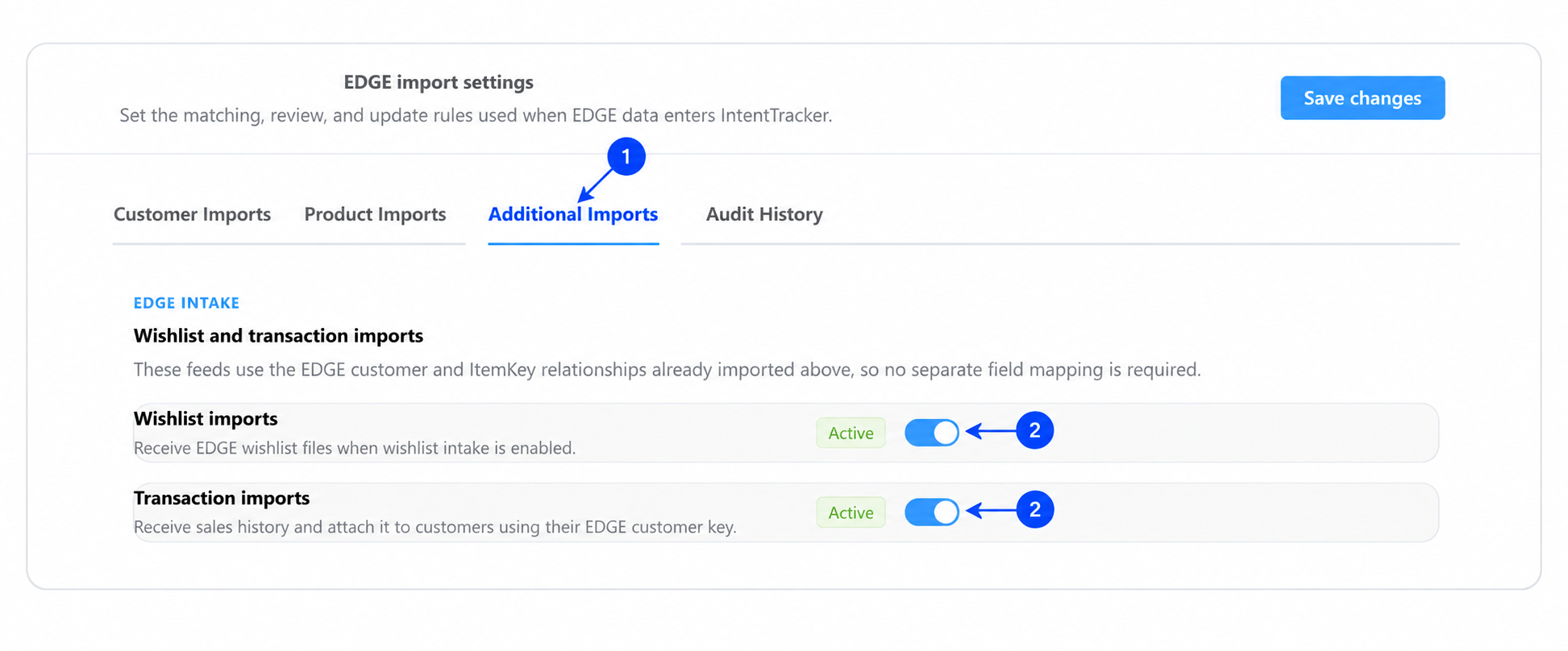
Illustration based on EDGE import settings: 1. Open Additional Imports. 2. Review the wishlist and transaction switches.
In Additional Imports, choose whether to receive wishlist and transaction feeds and save your changes. These feeds use the EDGE customer and ItemKey relationships already imported; they do not require separate field mapping. Transaction imports attach sales history to customers using the EDGE customer key.
Review imported records
- Open Imports and select Customers, Products, or Wishlist. Adjust the date range and select Apply dates when needed.
- Inspect the status and matching details. Open a record or item detail when more context is needed, and resolve any ambiguous or incorrect links before approval.
- Select eligible staged records and choose Approve Selected. The available actions depend on the selected tab and record state.
- For products, use Revalidate Pending Items after addressing matching or mapping issues. For wishlist records, use Revalidate wishlist items after resolving their dependencies.
Wishlist items become customer intentions only after the EDGE customer and ItemKey are matched. Check both relationships when an item remains pending. A non-stock item may require additional review.
Verify and troubleshoot
After the first transfer, review a small sample of customers and items, their links, and any expected wishlist or transaction data. Confirm that review and automatic-update settings match your store's decisions before expanding the feed.
If a record is missing, check the selected date range, the relevant intake switch, and the transfer with your EDGE administrator. If a match is ambiguous, review the record and matching priority. If an item or wishlist remains pending, check its review details and required customer or product links, then revalidate as appropriate. Use Audit History in EDGE import settings to review configuration changes. Contact IntentTracker Support if the transfer or a record still needs investigation.