What You'll Unlock
AI Concierge helps associates turn customer and intention context into useful summaries and practical follow-up ideas.
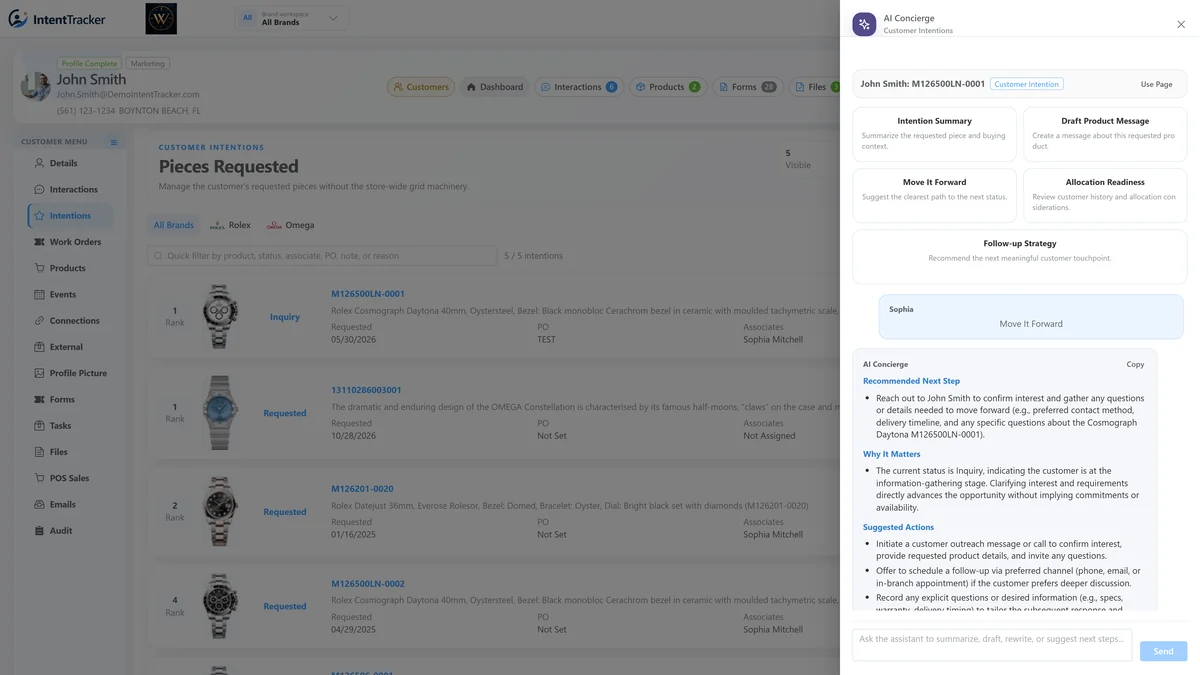
Example AI Concierge response for an intention.
AI Concierge helps your Retailer summarize customer interactions, suggest next steps, and draft personalized communication. It uses the OpenAI credentials configured for your Retailer and should be enabled only for approved workflows.
Overview
AI Concierge uses available customer, intention, and interaction context to help your team work more efficiently. It produces suggestions; your team remains responsible for reviewing and approving customer-facing communication.
Before you begin
- Name the business owner who approves AI use cases and spending.
- Review what information users may submit to AI features under your company policy.
- Use an OpenAI account owned by your organization, not an individual employee.
1. Configure the AI connection
- Sign in as an IntentTracker administrator.
- Open Admin Tools > Store Setup and select AI Concierge.
- Create a project-owned API key in the OpenAI API key dashboard.
- Paste the key into IntentTracker, select the model, and select Save Settings. The saved key is masked and is never displayed again.
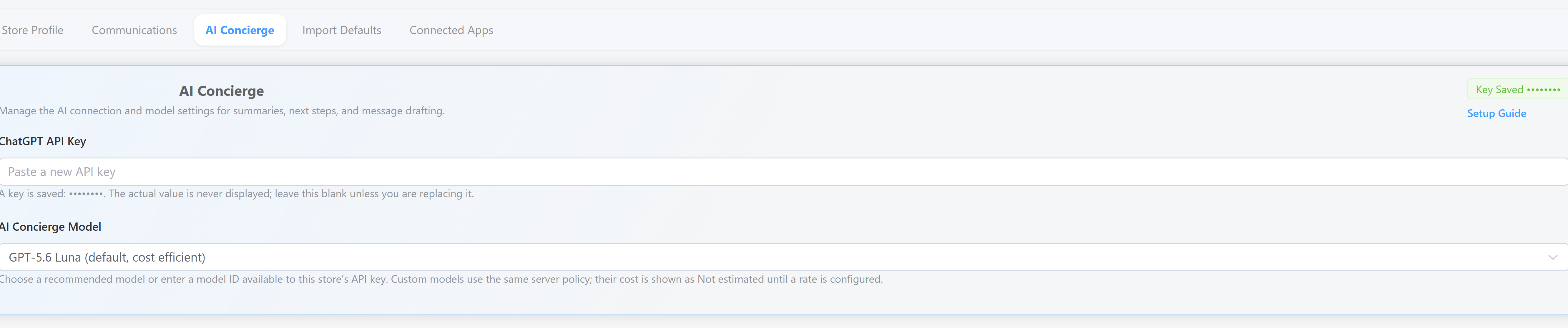
AI Concierge connection and model settings. A saved key is masked.
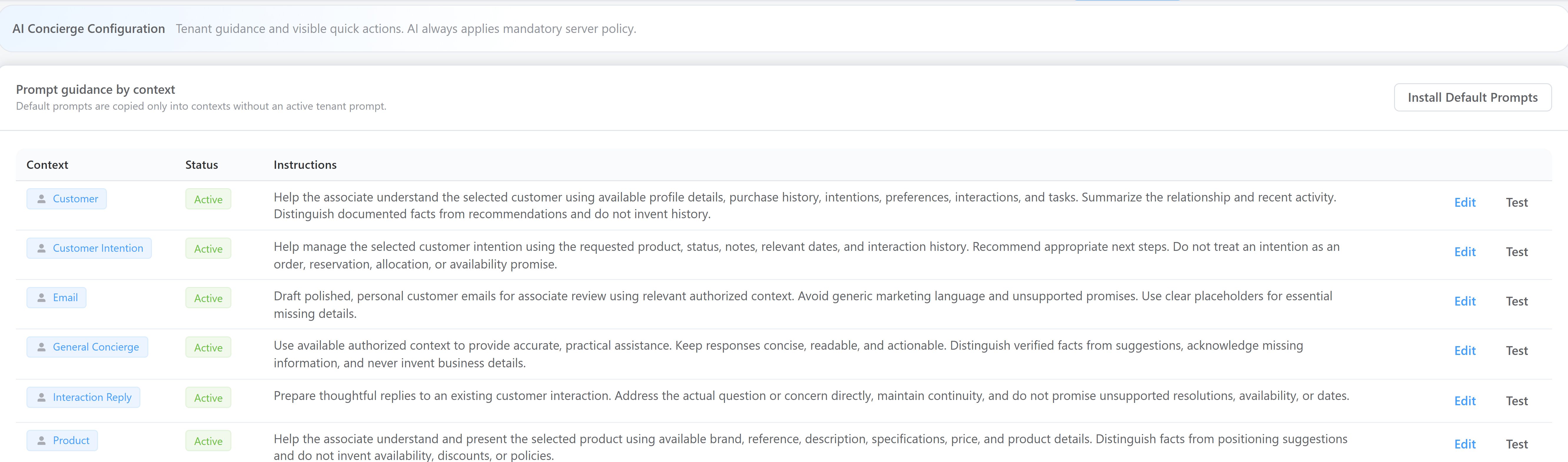
Review and test prompt guidance for each context.
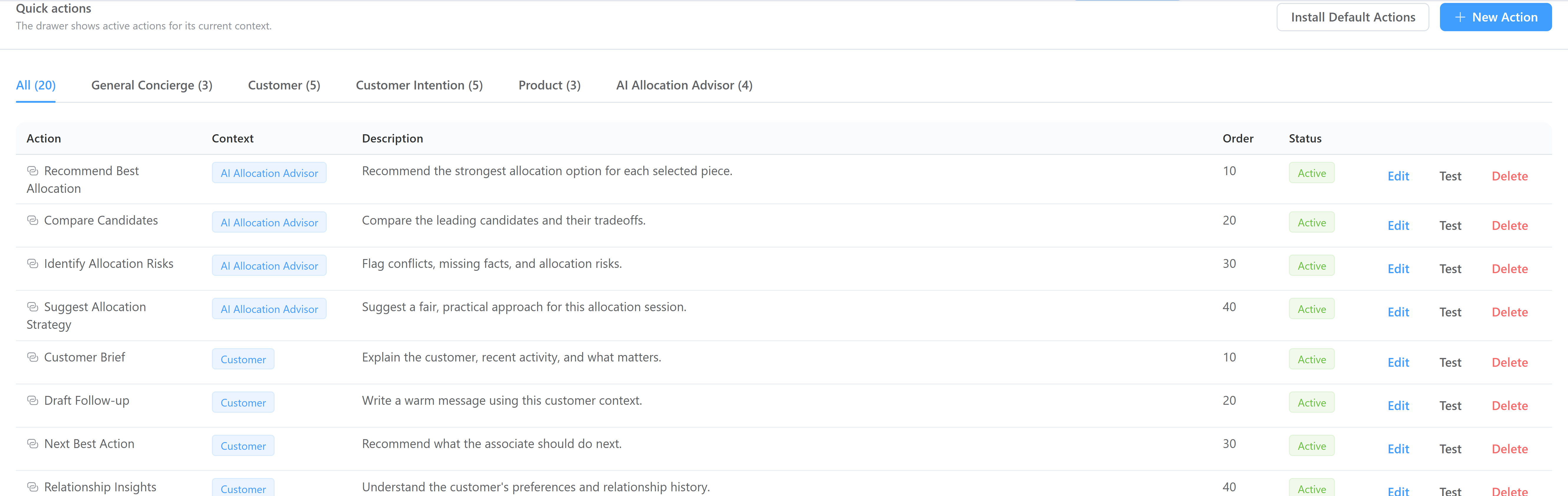
Quick actions can be reviewed by context and tested before use.
2. Configure AI Instructions
Open Admin Tools > AI Concierge Prompts. AI Instructions are concise business guidance that shapes the AI response for a specific context. Use them to define your Retailer voice, service standards, and boundaries. Do not repeat customer or intention details that IntentTracker already supplies as context.
3. Configure AI Actions
On the same page, use Quick actions to give users consistent starting points, such as summarize an interaction, prepare a follow-up, or identify next steps. Start with the default actions, test each one in its intended context, and keep only actions your team will use.
4. Verify your setup
- Use the Test option on an AI Instruction or Quick Action in AI Concierge Prompts.
- Run one non-sensitive customer or intention workflow in the AI drawer.
- Confirm the response uses the intended context and follows your business guidance.
- Have a designated user review every output before it is sent externally.
Troubleshooting
- If AI Concierge is unavailable, confirm a key is saved in Store Setup and that the integration is enabled.
- If a model fails, select a supported model available to the Retailer OpenAI account.
- If the response is too generic or misses your standards, refine the AI Instructions and test again.
- If costs or usage are unexpected, review the Retailer OpenAI project and rotate or remove the key as appropriate.
Next steps
Start with one internal workflow, review quality and usage after the first week, and then expand AI Actions deliberately. For credential guidance and model selection, see the OpenAI API key guidance and model catalog.
AI Concierge setup and verification
AI Concierge must be enabled for your store and each associate needs the Use AI Concierge permission. The store module is managed in client administration; if it is not enabled, review activation with your IntentTracker administrator. Store Administrators can open Admin Tools > Store Setup, select AI Concierge, enter the store's OpenAI API key, choose a model, and save. Never email the key.
In Admin Tools > AI Prompts, review prompts and AI Actions for your store. These are optional: IntentTracker provides default guidance and fallback quick prompts when no custom configuration exists. If actions are configured for a context, only active actions for that context are displayed. Store Setup also offers System configuration imports where available.
Open AI Concierge as an authorized associate and submit a non-sensitive test. Confirm that an answer appears and that the expected quick actions are available. If the key is missing, ask a Store Administrator to save it. If a saved key cannot be read or a request fails, verify the key and model, then retry; a network or provider error does not necessarily mean the feature is disabled.