What You'll Unlock
Recorded outcomes help your team understand conversion performance and identify common reasons opportunities are lost.
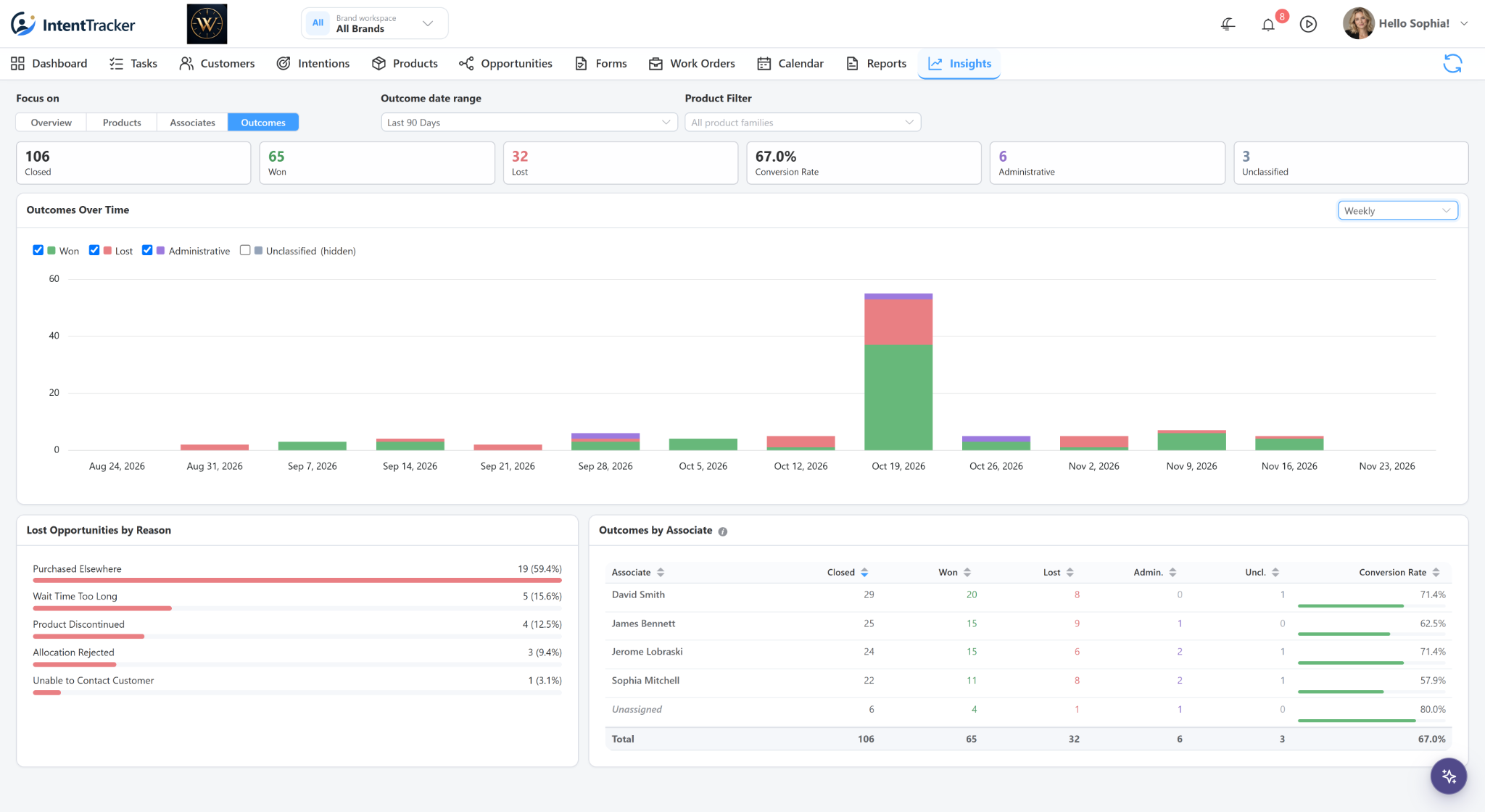
Example Outcomes report with recorded results.
Audience: Store Administrators and Store Managers. Estimated time: 15 minutes.
Outcome capture records how a customer intention ended. Insights uses these records to show purchases, lost opportunities, conversion performance, and reasons for lost opportunities.
Before you begin
Open Admin Tools > Lookup Lists. You need permission to manage customer intentions and should agree on the purchase and cancellation statuses your team uses.
Configure statuses that capture outcomes
- Select Intention Statuses and edit a status that represents a completed purchase or a closed opportunity.
- On Attributes > Outcome, select Is Purchased for a sale or Is Canceled for a closed-without-sale status.
- Select Require Outcome Reason when associates must select a reason as they move an intention into that status.
- Save the status and repeat for each outcome status your store uses.
A status cannot be both purchased and canceled. Only purchased and canceled statuses can require an outcome reason.
Configure available outcome reasons
- In Lookup Lists, select Intention Outcome Reasons.
- Add or edit a reason and select its Outcome Type: Positive for purchased statuses, Negative for lost opportunities, or Administrative for cancellations that should not count as a lost sale.
- Select Requires Notes only when an explanation is required.
Purchased statuses can use positive reasons. Canceled statuses can use negative or administrative reasons. A required outcome reason with no compatible reason is incomplete configuration.
How associates record outcomes
When an associate changes an intention to a status that requires an outcome reason, IntentTracker prompts them to select the reason and provide notes when required. The outcome is recorded with the status change; no separate reporting step is needed.
Verify the setup
- In a safe test record, move an intention to a configured purchased or canceled status.
- Confirm the outcome-reason prompt lists compatible reasons.
- Open Insights > Outcomes, choose a date range containing the test change, and confirm the result appears in the correct group.
Troubleshooting
- No prompt appears: verify Require Outcome Reason is enabled on the destination purchased or canceled status.
- No reasons are available: add a compatible Intention Outcome Reason with the correct Outcome Type.
- No data appears: verify a status change occurred during the selected date range, then review brand and product filters.
- Historical outcomes remain reportable after configuration changes; use a broader date range or adjust filters to find them.
For status setup and recommendation timing, see Configure Intention Statuses.