What You'll Unlock
Configured statuses help associates focus on timely follow-ups and move customer opportunities forward in My Day.
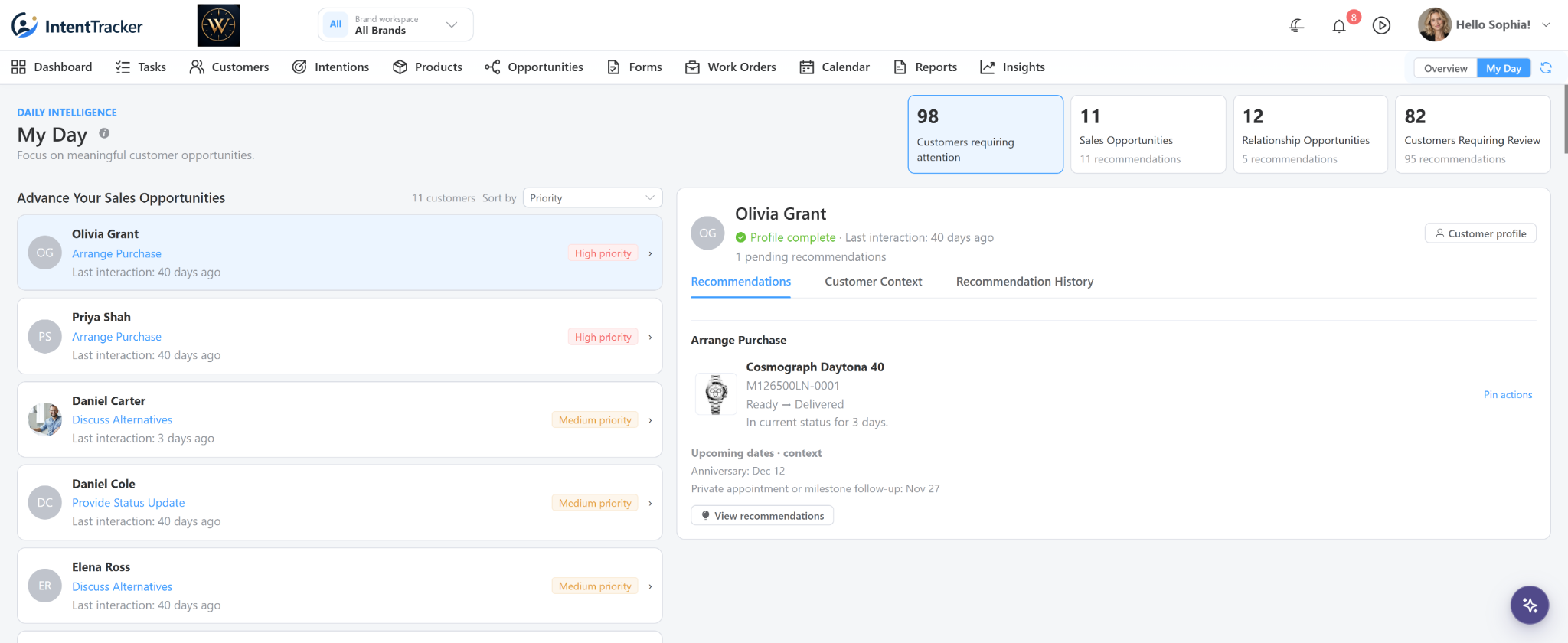
Example My Day recommendations based on intention status configuration.
Audience: Store Administrators and Store Managers. Estimated time: 20 minutes.
Intention statuses describe a customer's journey from initial interest through purchase or closure. They also shape where intentions appear and which follow-ups associates see. Review your store's workflow before going live. The examples below illustrate one possible configuration, not required settings for every store.
Define your intention workflow
A status tells associates where a customer's intention stands. Together, the statuses you configure describe the stages your team tracks and the outcomes it records. For example, a store might use Inquiry → Requested → Ready → Delivered for a purchase, with Discontinued, Rejected, and Lost as unsuccessful closures.
Your workflow includes both the stages an intention moves through and its possible outcomes, such as a completed purchase or a closure without a purchase. Each status also has configuration settings that determine where it appears, whether an outcome reason is required, and when follow-up recommendations are shown.
Choose stages and outcomes that match how your store works. Suggested next statuses and recommendations can guide associates through follow-up, but they do not enforce a sequence or automatically change an intention's status.
Open the configuration
Open Admin Tools > Lookup Lists and select Intention Statuses. Use the guided configuration wizard to work through the settings during initial setup. You can also edit an individual status directly: the editor has Details, Style, Attributes, and Configuration Preview tabs. The Attributes tab groups settings into the five categories below. The screenshots show the direct editor.
Lifecycle
| Attribute | Description |
|---|---|
| Is First | Identifies an entry stage in the lifecycle. |
| Is Last | Marks a final or closed stage. |
| Default Status For New Intentions | Selects the default status for new intentions. |
Suggested progression is advisory; it does not enforce status transitions.
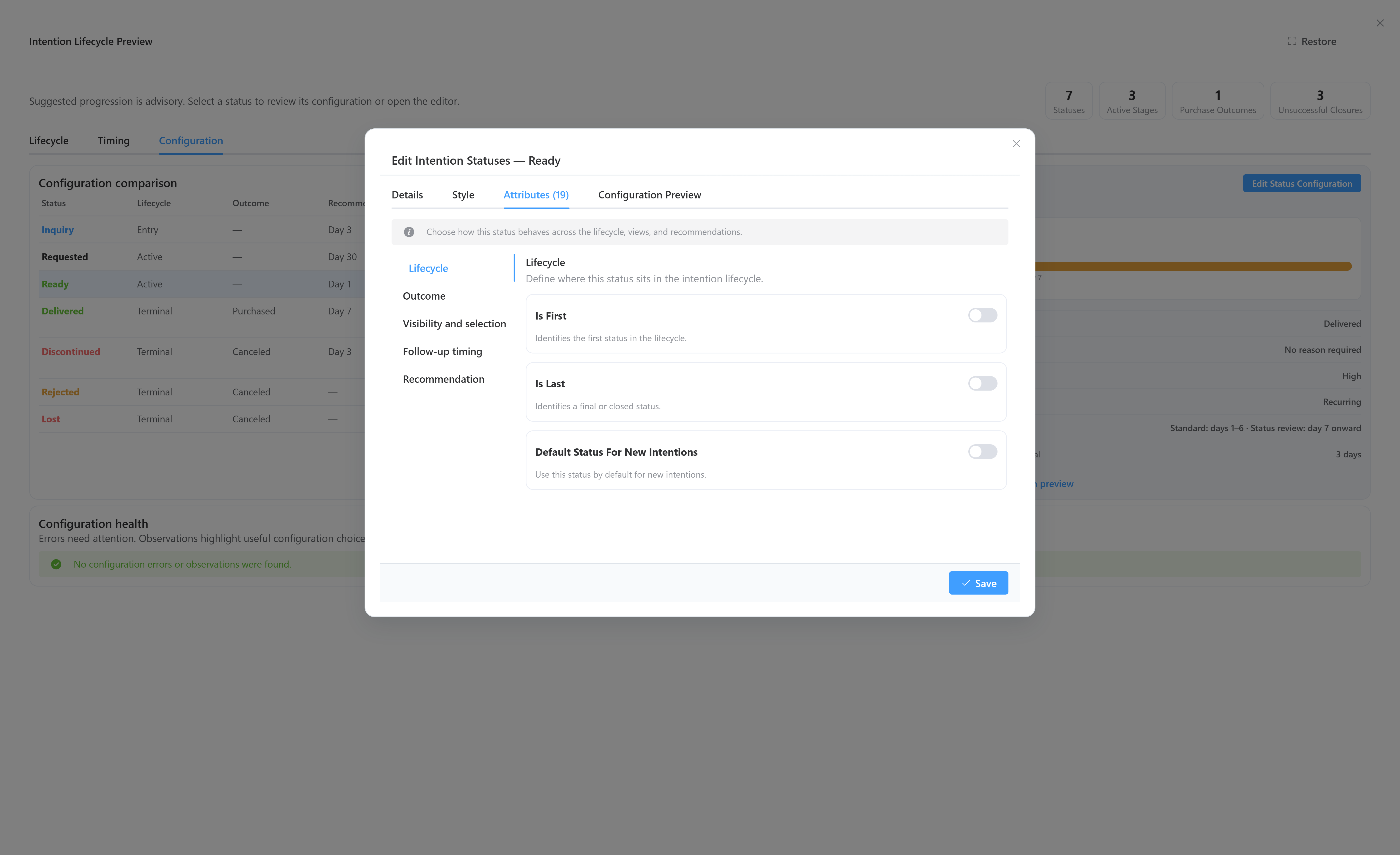
Lifecycle attributes in the direct status editor.
Outcome
| Attribute | Description |
|---|---|
| Is Purchased | Classifies entry into this status as a purchase outcome. |
| Is Canceled | Classifies entry into this status as a canceled outcome. |
| Require Outcome Reason | Requires a reason when entering a purchased or canceled status. |
A status cannot be both purchased and canceled.
For a complete setup walkthrough, including outcome reasons and reporting, see Configure Intention Outcomes.
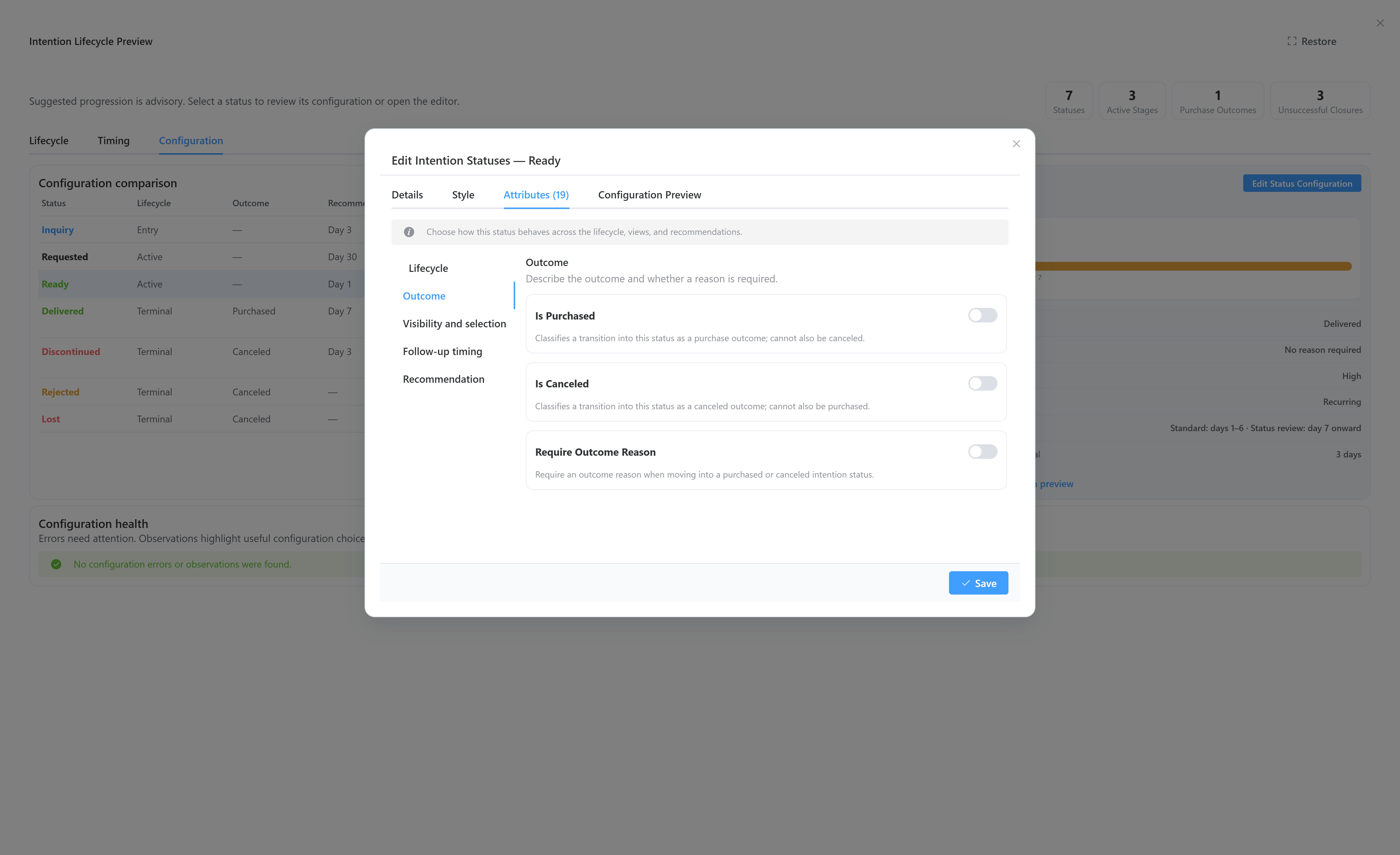
Outcome attributes in the direct status editor.
Visibility and selection
| Attribute | Description |
|---|---|
| Hide in Dashboard | Excludes the status from Dashboard views that honor this setting. |
| Hide in Insights | Excludes the status from Insights views that honor this setting. |
| Filter On Intentions Grid | Includes the status in the grid's default status filter. |
| Load for Customers Page | Includes intentions in this status on the Customers page. |
| Use for Opportunity AI Suggestions | Includes the status when selecting intentions for opportunity suggestions. |
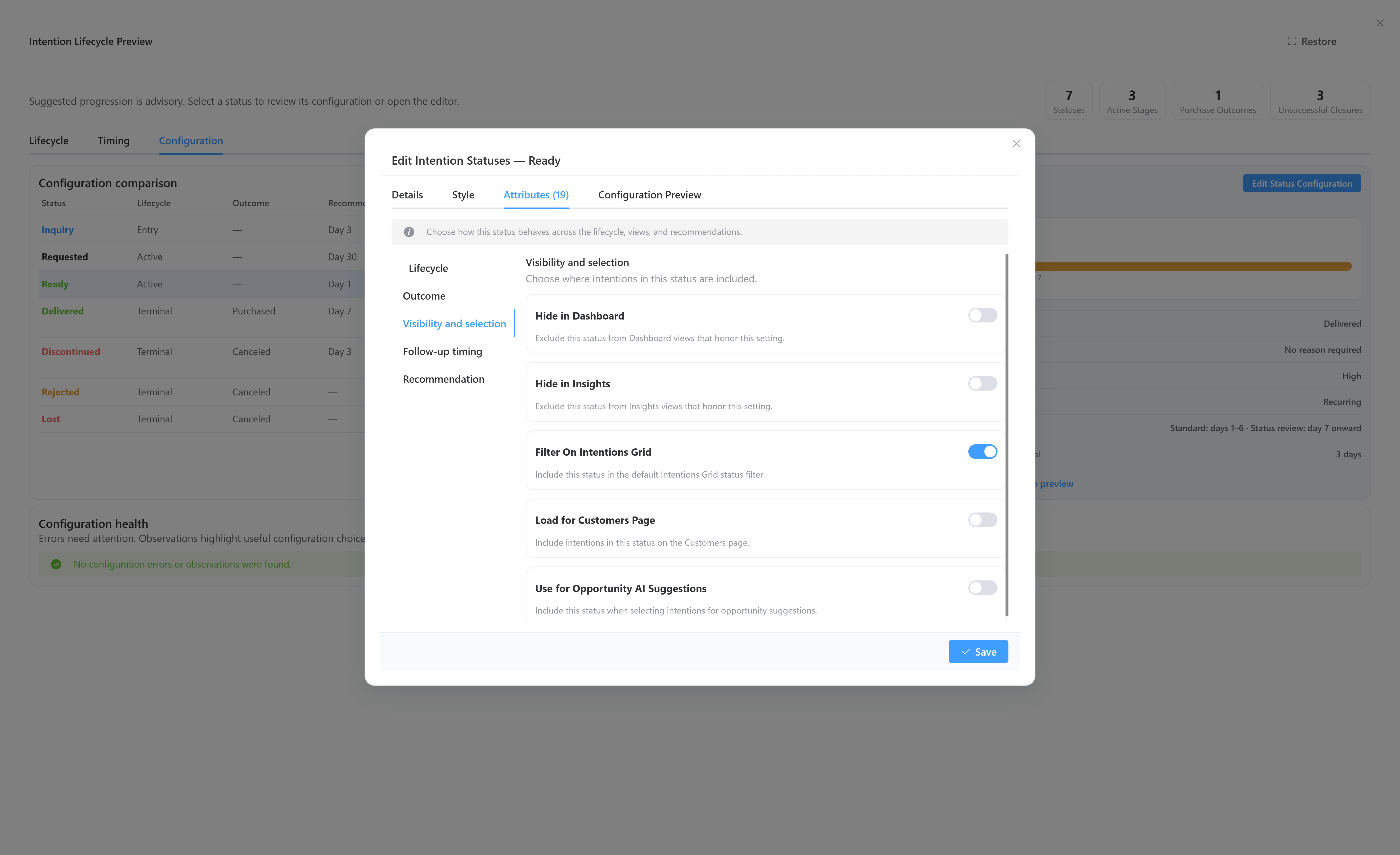
Visibility and selection attributes in the direct status editor.
Follow-up timing
| Attribute | Description |
|---|---|
| Recommend After (Days) | Earliest day for a standard recommendation. Blank disables it; zero means immediately. |
| Recommendation Expires After (Days) | Last day for the standard recommendation. Blank means no time-based expiration. |
| Review Status After (Days) | Starts a status review instead of the standard action. Blank disables reviews; zero starts immediately. |
| Minimum Days Since Last Interaction | Wait after a customer interaction or addressing a recurring recommendation. Blank or zero means no wait; no recorded interaction does not block eligibility. |
Timing values are non-negative whole days. Recent interactions do not delay status reviews, which do not apply to final, purchased, or canceled statuses.
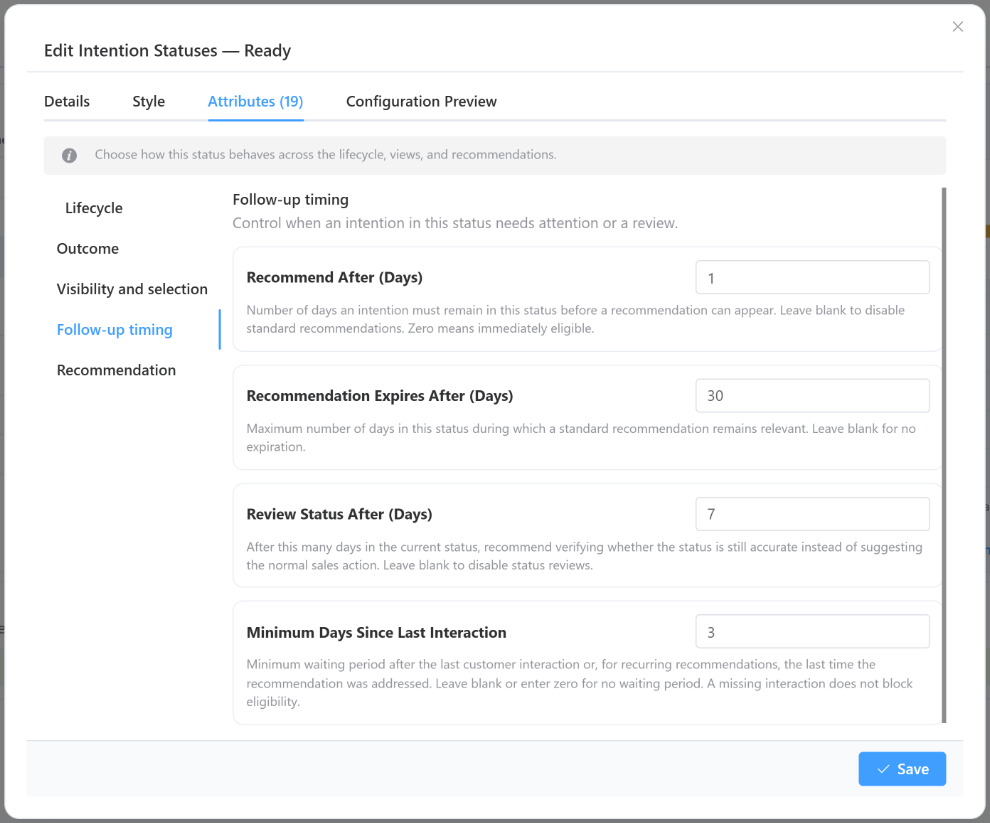
Ready follow-up timing in the direct status editor. Select the image to view it at full size.
Recommendation
| Attribute | Description |
|---|---|
| Suggested Next Action | Suggests a business action without executing a command. |
| Suggested Next Status | Suggests an optional milestone without changing the intention's status. |
| Recommendation Priority | Sets the displayed urgency. |
| Recommendation Frequency | Controls whether and when an addressed recommendation can return. |
With Recurring, a recommendation can return after the applicable interval. Once per Status Transition stays addressed until a new status transition. Configure priority and frequency for recommendations and reviews to appear.
Purchased statuses that have a suggested action require Post-Purchase Follow-Up and a configured expiration; they cannot suggest a next status.
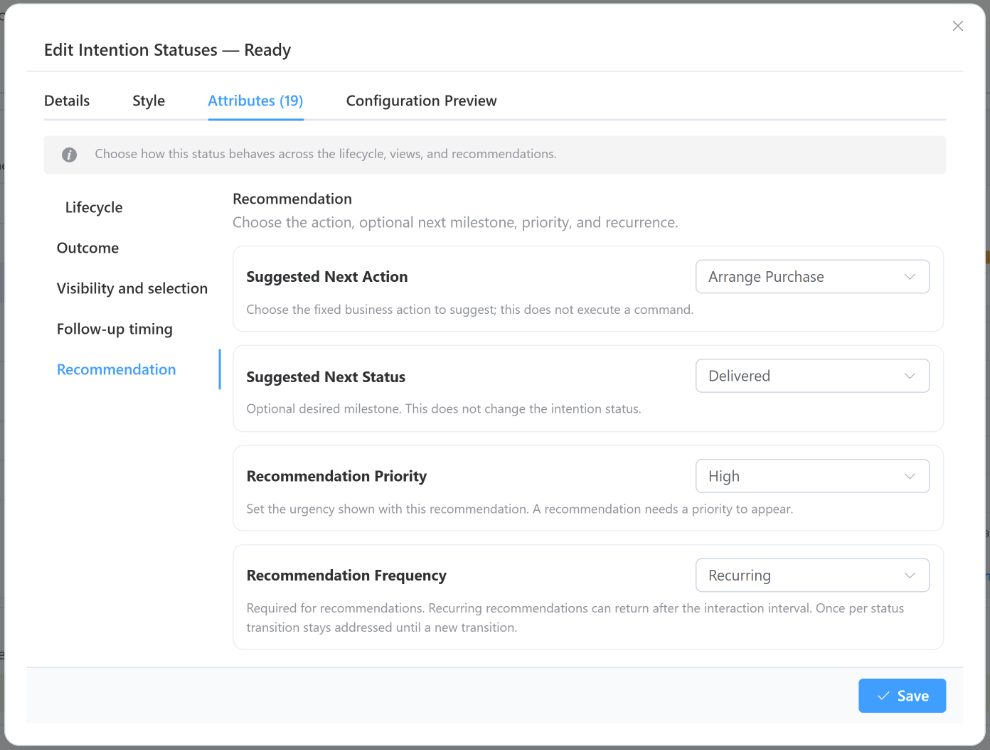
Ready recommendation settings in the direct status editor.
Configuration Preview: what happens over time
The preview translates configured thresholds into effective behavior. In this example, Ready has a one-day start, a day-30 expiration, a day-7 review threshold, a three-day minimum interaction interval, High priority, Recurring frequency, and Delivered as the suggested next status:
- Day 0: Waiting; no recommendation.
- Days 1–6: Arrange Purchase can be eligible.
- Day 7 onward: Review Intention Status takes precedence, even though standard expiration is configured for day 30.
Gray means no recommendation, blue means a standard recommendation, and amber means a status review. Recent interactions do not delay reviews, which have no time-based expiration. Actual availability remains subject to applicable eligibility rules, including priority, frequency, and addressed or snoozed state. The interaction interval applies to standard recommendations.
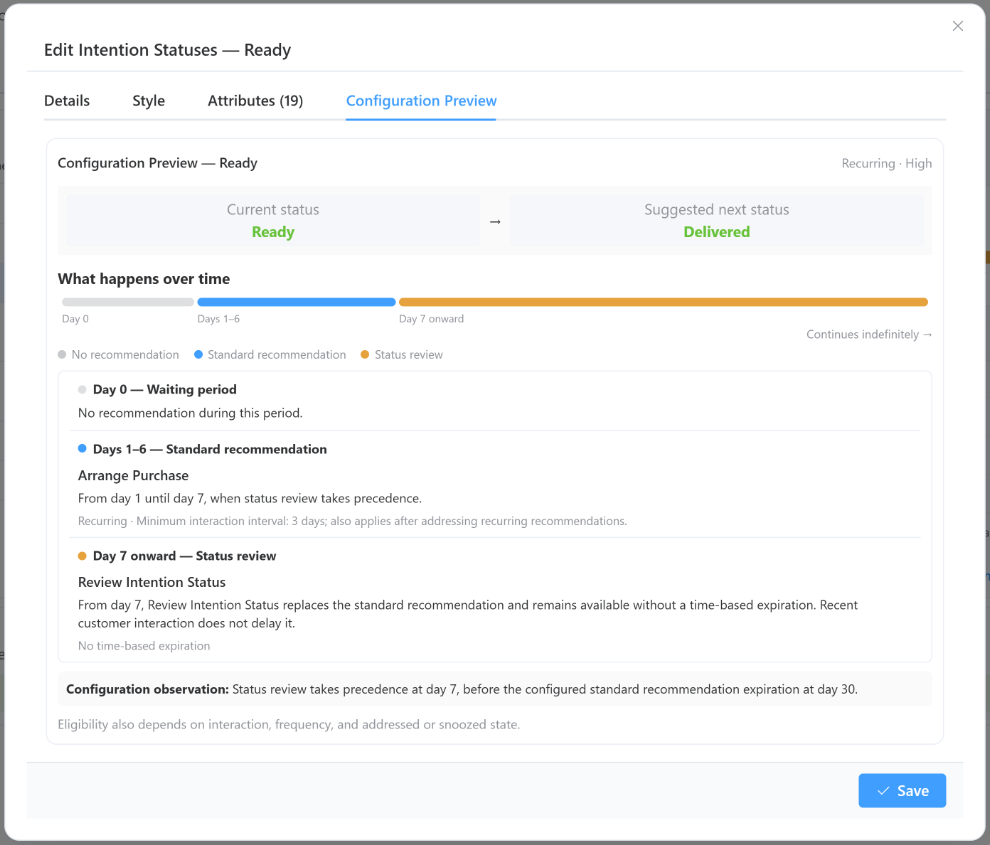
The Ready preview shows effective timing and recommendation details.
Intention Lifecycle Preview
Open Intention Lifecycle Preview from Intention Statuses to review the store's statuses together. The Lifecycle view shows the suggested progression, active stages, successful outcomes, and unsuccessful closures. For example, Inquiry → Requested → Ready → Delivered can represent a successful path, with Discontinued, Rejected, and Lost as unsuccessful closures. These are examples, not required statuses. Terminal statuses can still have recommendations, such as discussing alternatives or post-purchase follow-up.
Select a status to inspect its configuration, expand its full preview, or open its status editor. The following image shows the expanded selected-status details; it does not show the entire Lifecycle view.
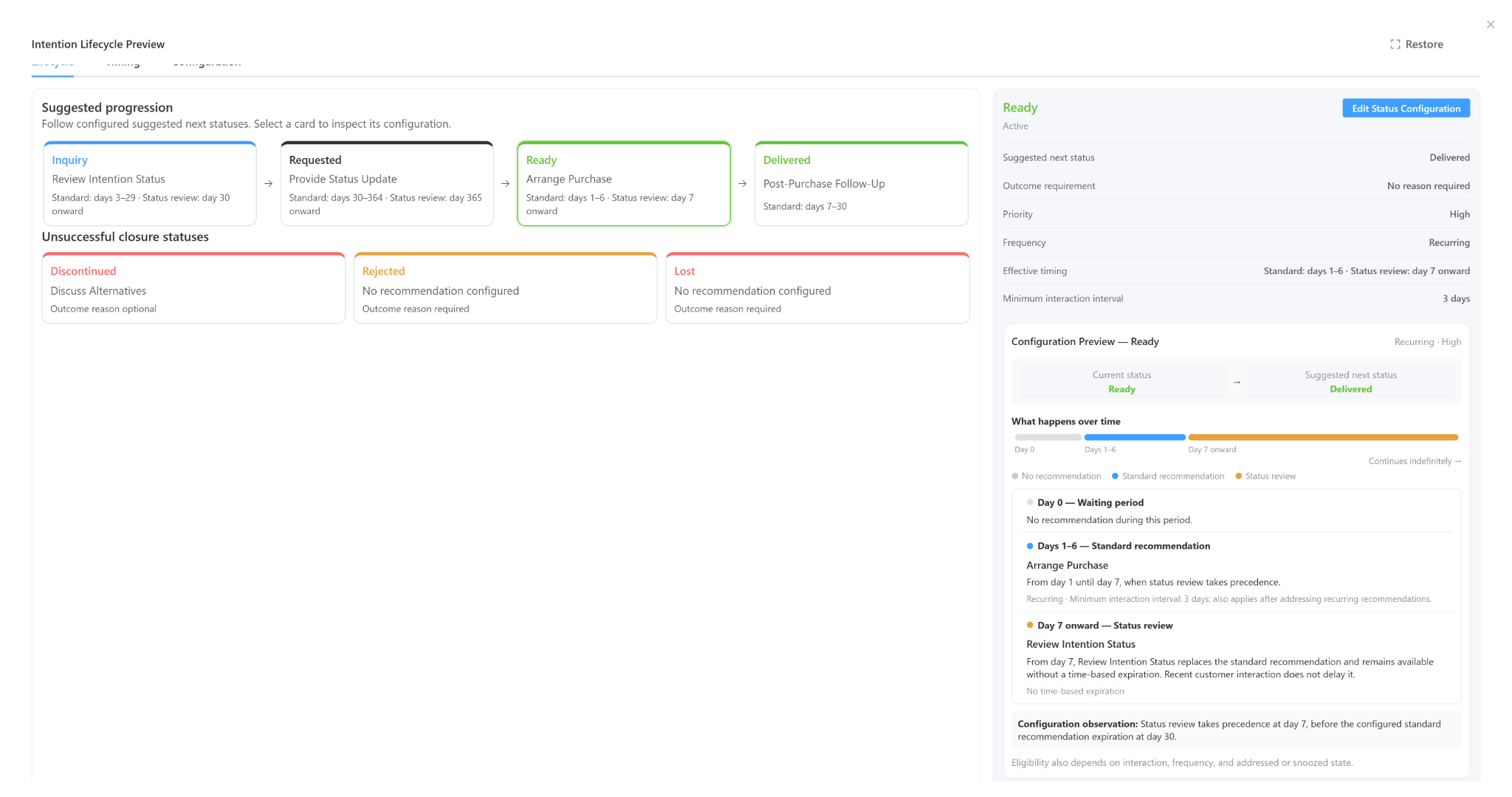
Expanded selected-status details within the Lifecycle view.
Timing
The Timing view compares effective standard recommendation windows, status review thresholds, minimum interaction intervals, and disabled recommendations. Each timeline uses its own scale; read the written thresholds instead of comparing bar lengths.
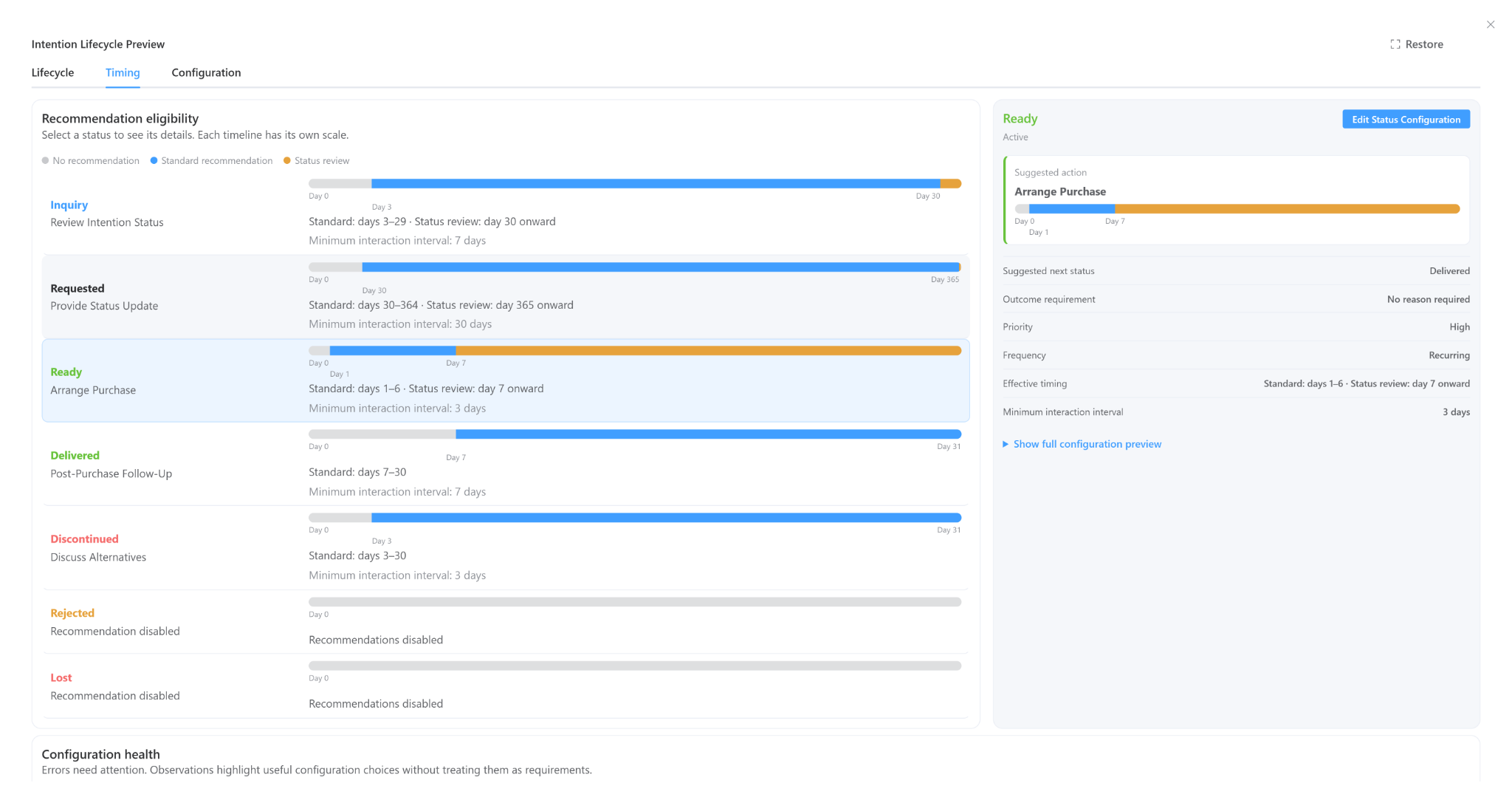
Effective timing for each configured status.
Configuration
The Configuration view compares all statuses by lifecycle and outcome classification, recommendation start and expiration, review threshold, minimum interaction interval, suggested next status, priority, and frequency. These are configured values; the effective window can be shorter when a status review takes precedence.
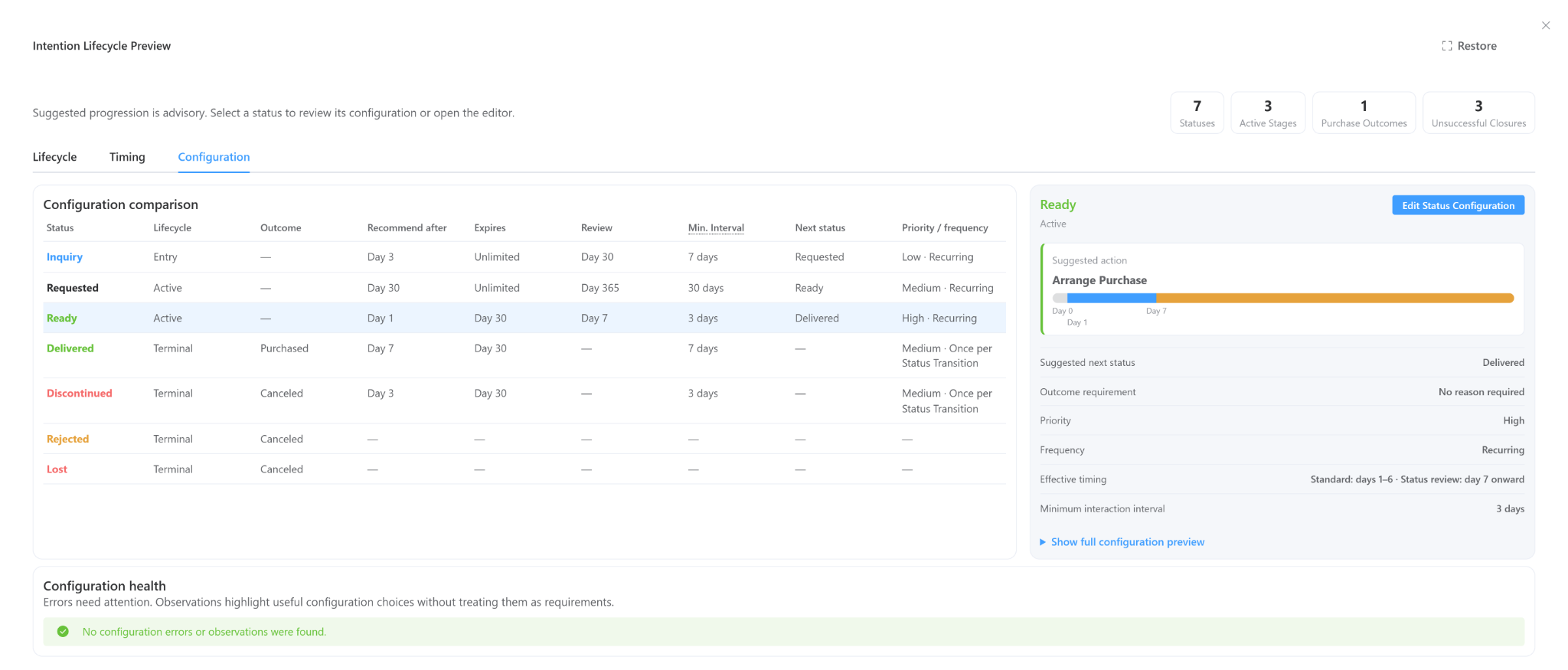
Side-by-side status configuration.
Configuration health
Errors identify settings needing attention, such as missing entry or purchase statuses, invalid timing, unavailable actions, or missing recommendation priority and frequency. Observations highlight choices to consider, such as a review threshold on a terminal status. Review both in the context of your store's workflow.
Readiness checklist
- Entry and default statuses match the store's workflow.
- Purchase and cancellation outcomes and required reasons are appropriate.
- Visibility and opportunity selection settings are reviewed.
- Recommendation actions, timing, priority, and frequency are configured where needed.
- Status reviews, post-purchase follow-up, and alternatives have been considered.
- The lifecycle, effective timing, and configuration health have been reviewed.
Return to Prepare Your Store to complete the remaining setup.